
Product cards, not buttons
Each card of the product list holds its product link next to an "Add to basket" or "Read more" button. Only the product link is followed, and add-to-cart links are skipped, so nothing lands in a basket.
WooCommerce runs on WordPress, and whatever the theme, its shop pages keep the same building blocks: a list of product cards, a price that can hold a struck-out regular price, a SKU line and a gallery that links to the large image. Web Product Scraper has a reader for those blocks. It turns a shop or category page into one row per product and fetches each photo at full size, not the 300-pixel copy WordPress made for the grid.
Add to Chrome, it's free No account · private by default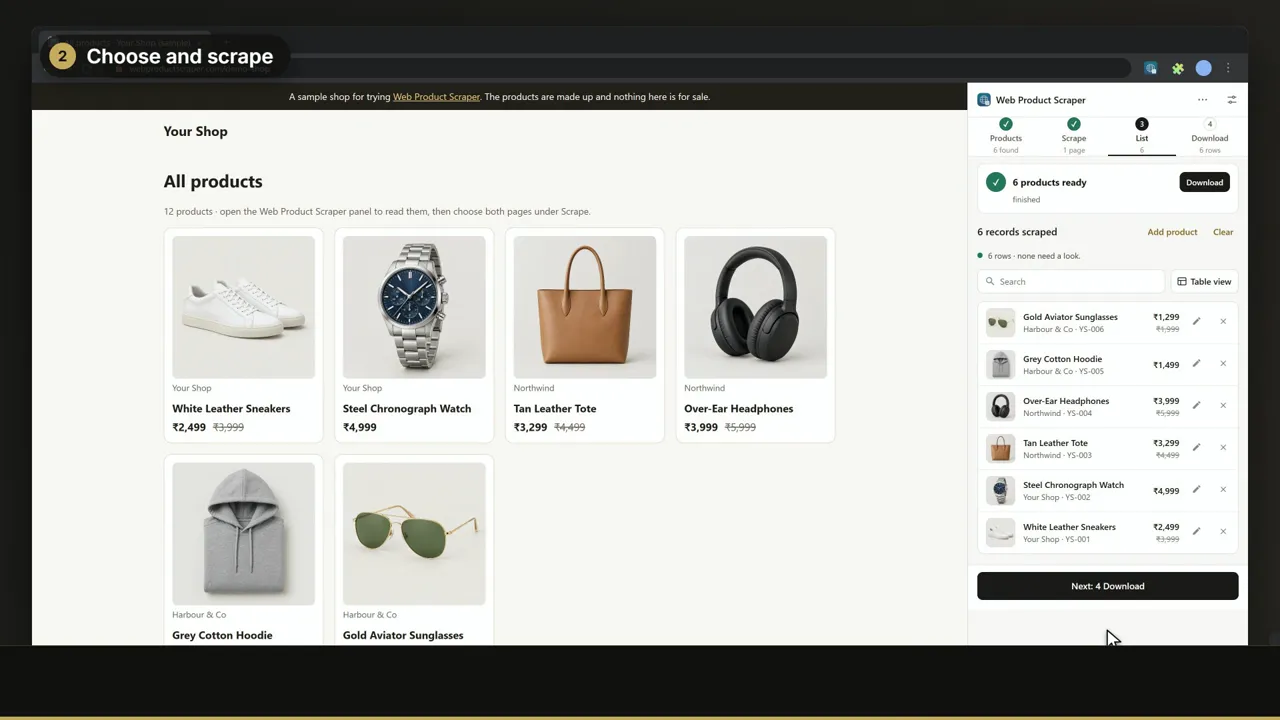 0:36
Open the shop, a product category or a search result of the WooCommerce site in Chrome, click the Web Product Scraper icon and press the Scrape button. The cards give the names, links and prices; keep Full (the default on WooCommerce shops) and each row also gets its SKU, category, description and full gallery. Then download Excel, CSV or JSON, or a ZIP of the photos sorted by product.
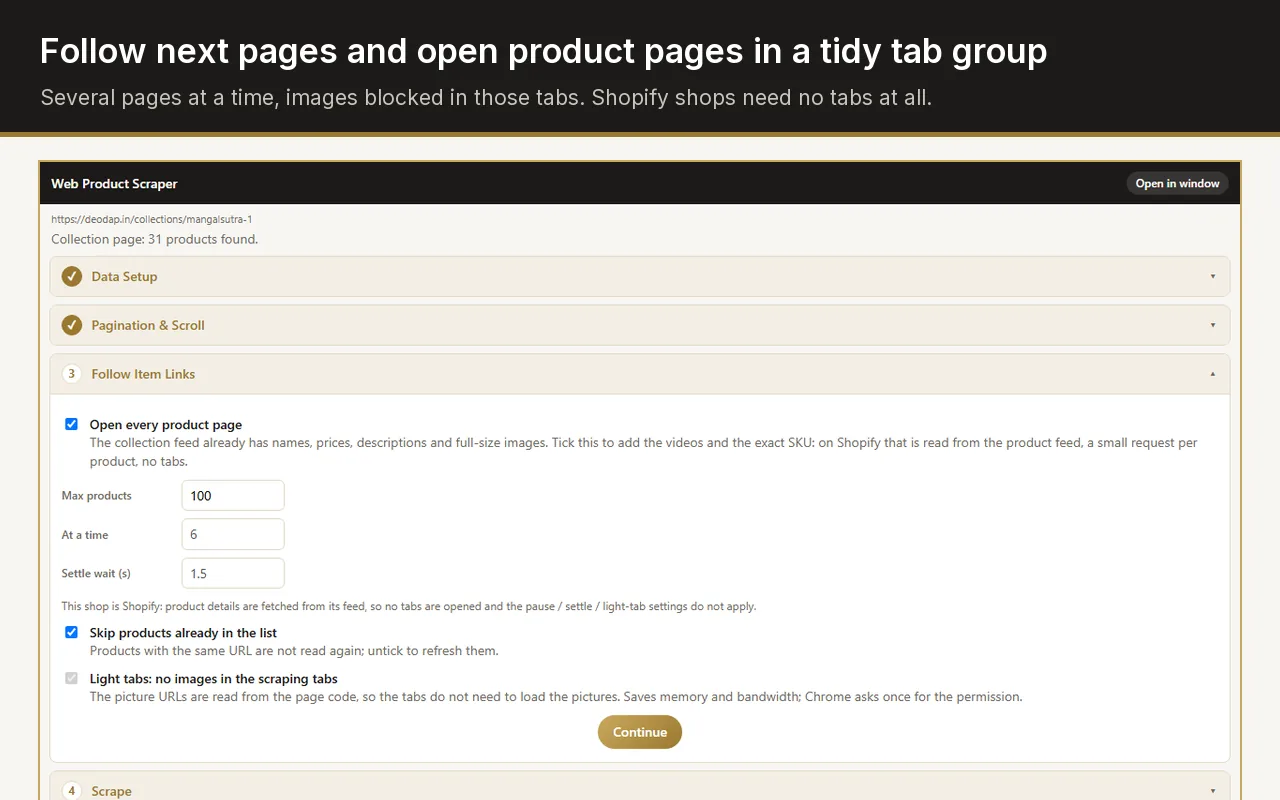
The same markup sits under almost every WooCommerce theme.
Each card of the product list holds its product link next to an "Add to basket" or "Read more" button. Only the product link is followed, and add-to-cart links are skipped, so nothing lands in a basket.
On a sale, WooCommerce prints the new price and the old one struck out. The new price goes in the price column; the struck-out one goes in the MRP column, and only when it is the higher of the two.
The "SKU:" line under the add-to-cart button on the product page, as the shop entered it.
The "Category:" line of the product page; when a product sits in several categories, the last one listed.
The short description beside the price, which is what most shops use as the summary. When a product has none, the text of the Description tab is taken instead.
Shop and category pages end with numbered links and a next arrow. A run reads each page of your range by address (/page/2/ and on), or follows the next arrow when it cannot.
When a photo is uploaded, WordPress saves several resized copies next to it, named like photo-300x300.jpg or photo-768x1024.jpg, and themes show those. On the product page, the gallery also carries the address of the large image for its zoom. Web Product Scraper takes that large image, and turns any address with a size suffix from the wp-content/uploads folder back into the original, photo.jpg.
The result is that each product folder in the ZIP holds the photos at full size, named after the product. A photo uploaded larger than 2,560 px can arrive twice: WordPress's own -scaled copy and a second file of the same picture.
Off by default; tick Variants in the Columns menu or in Settings.
A variable product's page carries its variations as data on the add-to-cart form, the same list the size and colour menus use. With Variants ticked and Full: open each product page, every variation becomes a row of its own.
The options, such as Size: M and Colour: Blue, the variation's own SKU, its price, its regular price as the MRP when it is higher, in stock or not, and the variation's own photo.
Without Variants, a variable product is one row with the first price of its range, usually the lowest.
When a product has over 30 variations (WooCommerce's default), WooCommerce loads them only after the shopper picks an option, so they are not on the page. Those products stay one row.
In step 4 open Shop import, choose For: WooCommerce and press Download WooCommerce CSV: a file with the columns of WooCommerce's built-in product importer, ready for Products, All Products, Import.
Every product goes in as a draft, at the price in your list (your own price when a markup is on), with the list price as the regular price and yours as the sale price when it is lower.
With Variants ticked, a variable product is written with up to three attributes, then one variation row each with its own SKU, price and stock.
The Images column lists every photo's address, which the importer fetches into your media library. The ZIP with a folder per product is there too when you want the files yourself.
Real exports the extension made from its own sample shop: 12 made-up products, two pages, read in Full. They show what the files hold; they were not made from a WooCommerce shop. The template is WooCommerce's import layout with two made-up products.
A grid made with the Product Collection block is not read by the WooCommerce reader; the general card reader takes over.
Each product keeps up to 20 photos. Excel and CSV hold 12 image columns; the ZIP holds them all.
Each product gets one category, the last one listed. Shop import writes only that one, without a parent > child path.
Shop import writes attributes as custom attributes, not global ones. Stock is in or out, without quantities.
Quick rows have no SKU, category, description or variations: those come from the product pages.
The page range is the current page only (set To, or All pages); a Scrape stops after 100 products; Variants is off.
The WooCommerce REST API returns every product field, stock included, but it needs keys that only the shop owner can create. Many shops also answer at /wp-json/wc/store/v1/products, the public Store API that WooCommerce's own cart and checkout blocks use. It returns published products as JSON, with prices as whole numbers in the smallest unit (1999 for 19.99), and some shops block it.
Web Product Scraper does not need either one. It reads the pages a shopper sees, so it also works on shops where the Store API is closed, and it gives you a spreadsheet and the photos instead of raw JSON.
In WordPress, go to Products, All Products and press Export. WooCommerce writes a CSV of every product, variations included, that it can import again.
That CSV lists image addresses in one cell. To get the files in a folder per product, run the extension on your own shop pages.
Without a login to their WordPress, the public pages are all you have, and that is what the extension reads.
From each tool's Chrome Web Store listing, and its own site where it has one, linked under Sources below, read on 4 November 2026. Prices are in US dollars; "not stated" means those pages do not say.
| Free version | Paid plans from | Files | Images | |
|---|---|---|---|---|
| Web Product Scraper | Every feature, no account | No paid plan | Excel, CSV, JSON, and a WooCommerce or Shopify import CSV | Links in the sheet (up to 12), and the photos in a ZIP, a folder per product |
| Woocommerce Scraper | 5 products and 3 websites a day | $59.99 a month, all products | Excel or CSV, in Shopify or WooCommerce format | Its site says images; links or files not stated |
| WooCommerce Scraper Extractor | No paid plan or limit shown on its listing | None shown | Not stated | Its listing says images; links or files not stated |
| Woocommerce Product Extractor | No paid plan or limit shown on its listing | None shown | CSV | An image field in the CSV; links or files not stated |
Each tool's own pages, where the facts above come from, read on 4 November 2026. Their pages win when they differ from this one.
Yes, when you tick Variants and choose Full: open each product page. Each variation then gets its own row with its options, SKU, price and stock. Without Variants, a variable product is one row with the first price of its range.
Yes. In step 4 open Shop import, choose WooCommerce, download the CSV and load it with Products, All Products, Import in WordPress. Products arrive as drafts, with their variations when Variants was ticked.
No. Add-to-cart links are recognised and never followed; only the product pages are opened.
Yes. The extension needs no keys and no login: it reads the public shop and product pages in your own browser.
Use Teach this site: press Pick next to Price and click the price once, then press Save site profile. The rule is saved for that shop and used on every page of it.
Plugins that import products from another site run on your WordPress server. Web Product Scraper works differently: it reads the shop's pages in your browser and writes a WooCommerce import CSV for WooCommerce's own importer, in Products, All Products, Import. The product CSV cheat sheet on this site explains its columns.