
Price, as a number
The selling price the page shows, without the currency symbol, so Excel can sort it, average it and compare it.
Web Product Scraper reads the prices on a shop's category, search or product pages into a table: the selling price, the struck-out or compare-at price in a column of its own, and the currency. Download it as Excel and every price is a number you can sort, filter and compare. It takes a snapshot when you press Start; it is not a monitoring service that checks prices on its own.
Add to Chrome, it's free No account · no server · nothing leaves your browser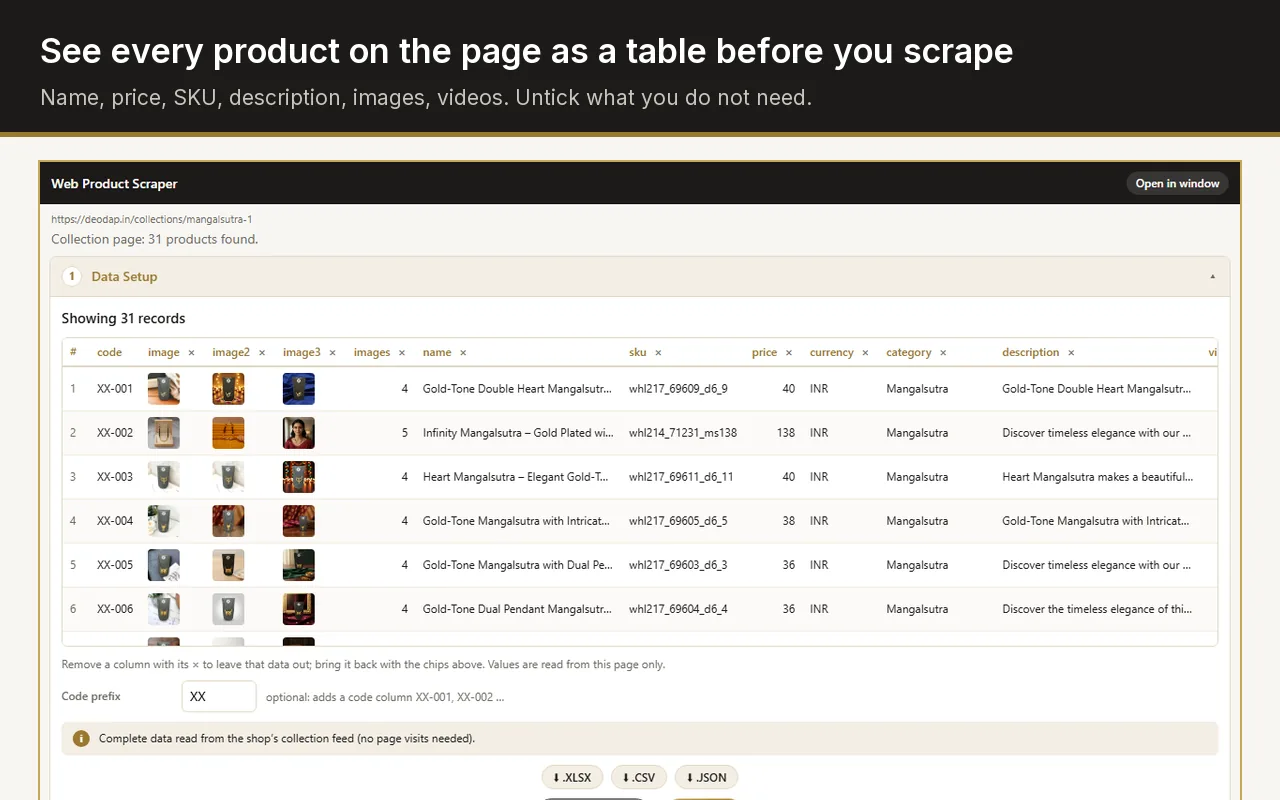
Open the shop's category or search page, click the Web Product Scraper icon, choose how many pages to read and press Start scraping. Then download the Excel file: one row per product with its name, link, price, list price and currency.
The selling price the page shows, without the currency symbol, so Excel can sort it, average it and compare it.
A struck-out price, a compare-at price, an RRP or an "M.R.P." label lands in its own column, never mixed up with the sale price.
In a column of its own, read from the page, so prices from shops in different currencies are not added together by mistake.
Set a markup, as a percentage or a fixed amount, and a column with your selling price appears, rounded up to a whole unit.
The product's address, and an optional code such as XX-001, to match the same product across two sheets.
When a price could not be read, the needs_review column says so, so you look at those few rows instead of all of them.
The table in the side panel can be searched and filtered column by column. Filter the price column to "from 40", sort it from high to low, or search for a brand, and the export takes exactly the rows the table shows. Tick a handful of rows and the export takes only those.
A run skips products already in the list, so a new snapshot starts from an empty list.
Run the pages and download the Excel file, with the date in its name.
When you want new prices, press Clear in the side panel. Files you already downloaded are not touched.
Open the same category and run it again, then download the second sheet.
Put both in one workbook and look up each product's old price by its link, for example =XLOOKUP(B2, Old!B:B, Old!D:D). Subtract to see what changed.
Run the first shop, then open the second one and run it too. The panel notices the list holds another site's products and asks whether to clear it or keep both; keep both and you get one sheet with the products of the two shops, each row with its own link. Sort by name, or match by your own codes, to put the same products side by side.
It runs when you press Start, in your own browser. Services that check prices every day and send alerts are paid tools built for that job.
Prices that change after a size or colour is chosen are not listed per option; the row holds the price the page shows.
It reads the shop you have open and the pages a run follows from it, with pauses between them, never a list of sites in the background.
Yes. There is no account and no paid tier, and the Excel file is made in your browser.
No. Each run is a snapshot. To see changes, keep each sheet and compare it with the next one, as described above.
The sale price goes in the price column and the struck-out price in the list price column, so the discount is easy to calculate.
Prices on public pages are commonly compared, but each site sets its own terms. Read them, take only what you need, and keep the default pauses between pages.