
Chrome and the extension
Any recent Chrome or Edge. The extension is free, with no account and no paid tier.
Five steps, about a minute of work for a page of products, and one ZIP at the end with a folder per product. This guide also covers what to do when a shop hides its images behind product pages, asks for permission, or fails on a few files.
Add to Chrome, it's free No account · no server · nothing leaves your browser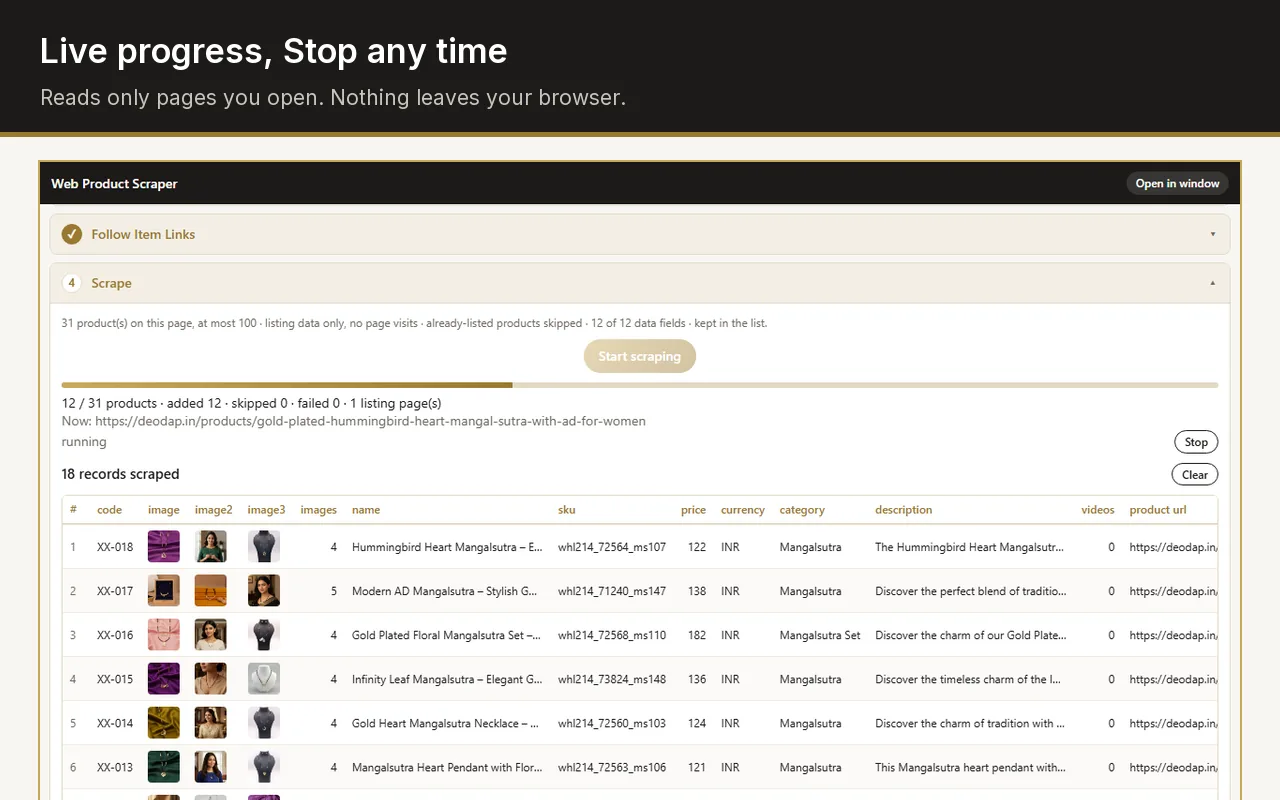
Open the shop page, click the extension icon, press Start scraping, then open the "Images & videos" tab and press Download ZIP. Everything below is the same thing with the details, and the fixes for the three things that usually go wrong.
Any recent Chrome or Edge. The extension is free, with no account and no paid tier.
A supplier, wholesaler or your own shop. Read the site's terms first.
Product photos are large. Several hundred photos can be a few hundred megabytes.
A collection, category or search page. The panel says how many products it found; if it says none, the page may be a single product page, which also works.
Step 1 shows every product as a row. Remove columns you do not need with the × on the header. Add a code prefix if you want XX-001 style codes in the spreadsheet.
In step 2 pick the page range, for example 1 to 3. In step 3 tick "Open every product page" when the listing shows only small thumbnails; that is what gets the full-size gallery.
Press Start scraping. Progress, counts and a Stop button are shown. On Shopify shops the data comes from the product feed, so it finishes in seconds.
Open the "Images & videos" tab, check the file count, and press Download ZIP. A timer and the size run while it works, and Chrome saves it to your Downloads folder.
"This site has not been allowed yet." Press "Allow this site" once. Chrome asks for permission for that site only, and the panel then reads every page of it.
Only small thumbnails in the ZIP. The listing page carries small images; tick "Open every product page" in step 3 and run again, and the originals come from each product page.
No products found, or the wrong values. Open "Teach this site", press Pick next to the field that is wrong, and click the right value on the page. Save the profile and it is used on every page of that shop, including the pages a run opens.
A few files missing. The ZIP contains _failed.txt with the addresses that could not be fetched. Some shops block direct fetches of a few files; download those by hand.
The download is slow. The speed is the shop's, not the extension's. The timer shows the rate; a large catalogue can take several minutes, and you can keep using other tabs.
The reading is seconds to a couple of minutes depending on whether product pages are opened. The photo download then depends on the shop's speed and the number of files; a few hundred photos usually take a few minutes.
Yes. Products already in your list are skipped, so a second run adds only what is new.
Yes, product videos are saved with the images in the same folder per product.
In Chrome's Downloads folder, as one ZIP. Nothing is uploaded anywhere; the extension has no server.