Web Product Scraper

Shopify and WooCommerce product CSV:
every column, side by side.

Both platforms import products from a CSV file, but they name, order and fill the columns differently, and the price columns even mean the opposite. This page puts the two formats next to each other: what each column is called, which values it takes, how variants and photos are laid out, the errors that stop an import, and two templates you can download.

Add to Chrome, it's free No account · private by default
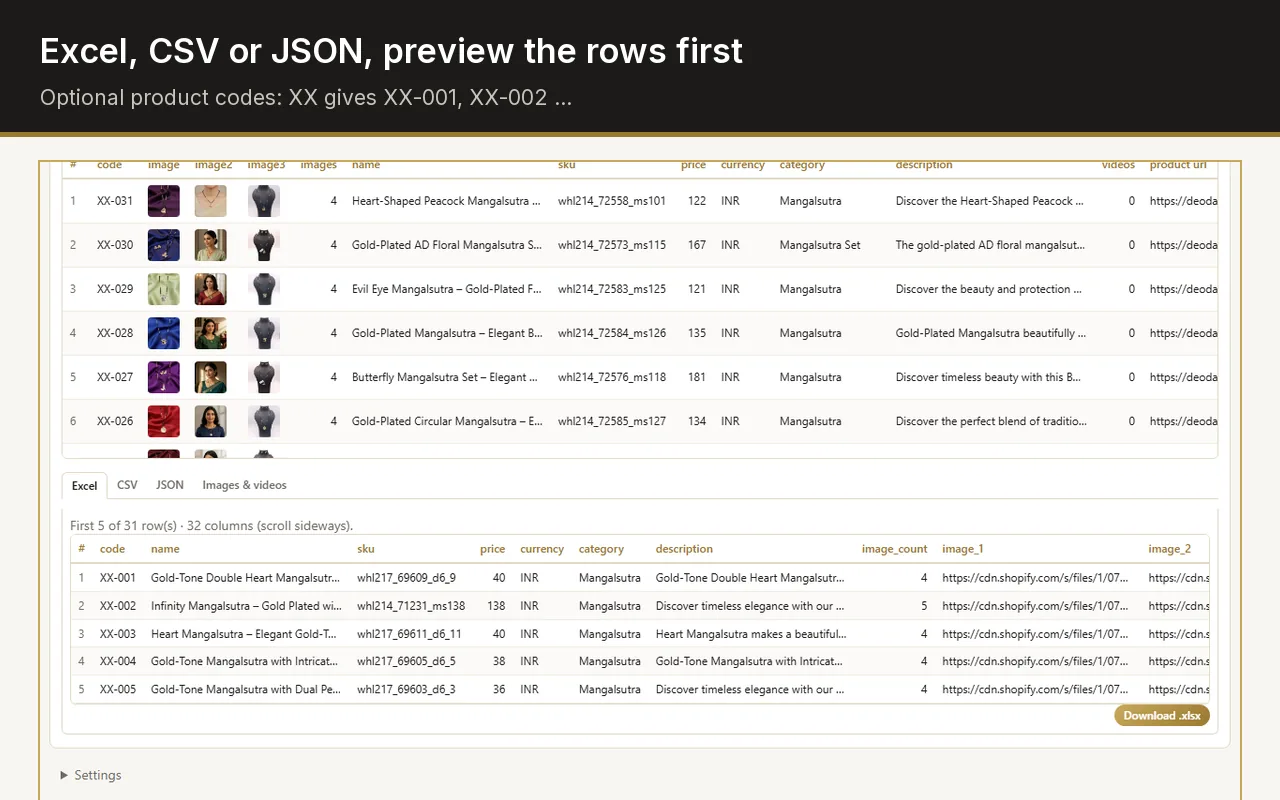
Excel export preview in the Web Product Scraper sidebar: the first five product rows with code, name, SKU, price and image URLs

Which columns does a product CSV need?

For a new product, Shopify requires only Title and WooCommerce only Name; the rest is optional or filled in for you. A file that imports cleanly and looks right in the store usually has these:

  1. Shopify: Title, URL handle, Description, Status, Price, and a Product image URL with an Image position for each photo.
  2. WooCommerce: Type, SKU, Name, Published, Regular price, Categories and Images.
  3. Save it as CSV UTF-8, with the header in the first row and commas between the columns.
  4. Import one or two products first, check them in the admin, then import the rest.

The same product in both files

Exact column names as each platform writes them in its own export.

WhatShopify columnWooCommerce columnNotes
NameTitleNameRequired on both.
Product addressURL handleNone (made from the name)Shopify: letters, numbers and dashes, no spaces. Rows with the same handle are one product.
DescriptionDescriptionDescription, Short descriptionBoth accept HTML.
Brand or supplierVendorNone built inIn WooCommerce use an attribute or a tag.
CategoryType (free text), Product category (Shopify's taxonomy)CategoriesWooCommerce: a comma between categories, > for a subcategory: Clothing > T-shirts.
TagsTagsTagsComma-separated on both. Shopify allows 250 per product.
Draft or liveStatus: active, draft or archived; Published on online store: true or falsePublished: 1 live, 0 private, -1 draftImport as drafts, check, then publish.
SKUSKU (one per variant)SKUWooCommerce makes one when it is blank; a variation points to its parent's SKU.
Selling pricePriceSale price when discounted, otherwise Regular priceNumbers only: 499.00, not ₹499.
Original priceCompare-at priceRegular priceThe two platforms reverse these; see the next section.
StockInventory tracker, Inventory quantityIn stock? (1 or 0), Stock (a number)Shopify's quantity column works for single-location stores.
PhotosProduct image URL and Image position, one row per photoImages: every URL in one cell, comma-separatedPublic https addresses; both platforms download the files.
OptionsOption1 name, Option1 value, up to Option3Attribute 1 name, Attribute 1 value(s), and so onShopify allows three options per product.
Variant photoVariant image URLImages on the variation rowOne photo per variant.
WeightWeight value (grams)Weight (kg), with your store's unit in bracketsShopify wants whole grams: 5.125 kg is 5125.
Search snippetSEO title (70 characters), SEO description (320)None built inIn WooCommerce this comes from an SEO plugin.

The price trap: the two platforms name prices the opposite way

In Shopify, Price is what the customer pays and Compare-at price is the old, crossed-out one. In WooCommerce, Regular price is the old one and Sale price is what the customer pays. Moving a file from one to the other without swapping them turns every discount upside down.

Product on sale for 499, was 599ShopifyWooCommerce
What the customer paysPrice: 499.00Sale price: 499
The crossed-out priceCompare-at price: 599.00Regular price: 599
No discount, sold at 499Price: 499.00, Compare-at price emptyRegular price: 499, Sale price empty

Variants in Shopify: one row per variant, one URL handle

The product's own fields go on the first row only; every row repeats the URL handle. A product without options still needs Option1 name Title and Option1 value Default Title.

RowTitleURL handleOption1 nameOption1 valueSKUPriceProduct image URLImage position
1Cotton T-shirtcotton-t-shirtSizeSTS-S499.00https://…/front.jpg1
2cotton-t-shirtMTS-M499.00https://…/back.jpg2
3cotton-t-shirthttps://…/detail.jpg3

Variants in WooCommerce: a variable product and its variations

The variable row lists every value of the attribute; each variation row has one value and names its parent in Parent. Keep the parent row above its variations. Set Attribute 1 visible to 1, and Attribute 1 global to 0 for a size list used only by this product.

RowTypeSKUParentNameAttribute 1 nameAttribute 1 value(s)Regular priceSale price
1variableTSCotton T-shirtSizeS, M
2variationTS-STSCotton T-shirt - SSizeS599499
3variationTS-MTSCotton T-shirt - MSizeM599499

Photos in each file

Shopify

One row per photo, each with the URL handle, the Product image URL and an Image position from 1 up, to 250 photos. The address must be public https; Shopify downloads the file. Avoid thumbnail files whose names end in _thumb, _small or _medium.

WooCommerce

Every photo in one Images cell, separated by commas; the first becomes the main image. The files must be online or already in the media library. Large galleries make the import slower.

Alt text

Shopify has an Image alt text column, up to 512 characters, 125 or fewer recommended. WooCommerce takes alt text from the media library after the import.

Common import errors and how to fix them

Most failed imports come down to the same few causes.

Odd characters such as é or ’

The file was not saved as UTF-8. In Excel choose Save As, CSV UTF-8; a CSV downloaded from Google Sheets is already UTF-8.

Everything in one column

Excel in some regions saves with semicolons. Both importers expect commas: change the list separator, or export from Google Sheets.

SKUs or barcodes changed

Excel turned them into numbers, dropping leading zeros or writing 1.23E+12. Format those columns as Text before pasting, or edit the file in Google Sheets.

Prices at 0 or rejected

Remove currency symbols and thousands separators: 1499.00, not ₹1,499. Shopify sets an empty Price to 0.00.

Shopify variants disappeared

A file without Option1 name and Option1 value makes Shopify create one default variant and delete the existing ones when it overwrites a product.

Shopify rejects the size columns

Packed product length, width, height and dimension unit go together: fill all four or none.

Photos missing

Each address must open in a browser without signing in, over https. An address that no longer works, such as a photo deleted from the store, can make the import fail.

One category became several

WooCommerce splits categories at commas. Remove the comma from the category name and use > for a subcategory.

Variations not linked

WooCommerce: Parent must match the parent row's SKU (or id:123), the parent row must have Type variable, and each variation takes one attribute value.

Products went live too early

Import as drafts: Status draft in Shopify, Published -1 in WooCommerce. Publish after checking a few.

Download the two templates

The same two products in each format: a mug without options and a T-shirt in two sizes on sale, both as drafts, from a made-up shop. Keep the header row, replace the products, add your photo addresses, and import one product first.

Making the file from a shop's pages

When the products are already on a website, such as a supplier's shop or your own old store, Web Product Scraper writes these files for you. Open a category or collection page, choose Shop import in step 4 and pick Shopify or WooCommerce. Products go in as drafts at your price when a markup is set, the list price becomes the compare-at or regular price only when it is higher, sizes and colours become variants, and the photo addresses follow each platform's layout.

Only import products you have the right to sell, with photos you are allowed to use.

Sources

Checked against the official documentation on 13 October 2026. Both platforms add columns from time to time; their own pages win when they differ from this one.

Frequently asked questions

What is the minimum CSV for importing products into Shopify?

A header row and a Title for each product. Shopify makes the URL handle from the title, sets the price to 0.00 and the status to active, so in practice add Price, Status and at least one Product image URL.

Can I import a Shopify product CSV into WooCommerce?

Not as it is. The column names differ, the photos are laid out differently, and the price columns are reversed. Rename the columns as in the table on this page, swap the prices, and use the column-mapping screen of WooCommerce's importer for the rest.

Which price goes where when a product is on sale?

Shopify: Price is the sale price and Compare-at price the original. WooCommerce: Sale price is the sale price and Regular price the original.

Do I have to upload the photos first?

No. Both platforms download photos from the addresses in the file, as long as each address is public. WooCommerce can also use images already in its media library.

How many options can a product have?

Shopify allows three options per product, such as size, colour and material. WooCommerce takes as many attributes as you add columns for.

Add to Chrome, it's free