
Open the shop
Open a category, collection or search page of the shop, and click the extension icon. The products on the page appear as a table.
Which way works best depends on the page. Chrome can save every image a page has loaded, an image downloader extension lets you pick and filter the pictures on the page in front of you, and on an online shop a product scraper saves each product's photos at full size, sorted into folders, across all the pages of a category. Here is how each one works and where it stops.
Add to Chrome, it's free No account · no server · nothing leaves your browser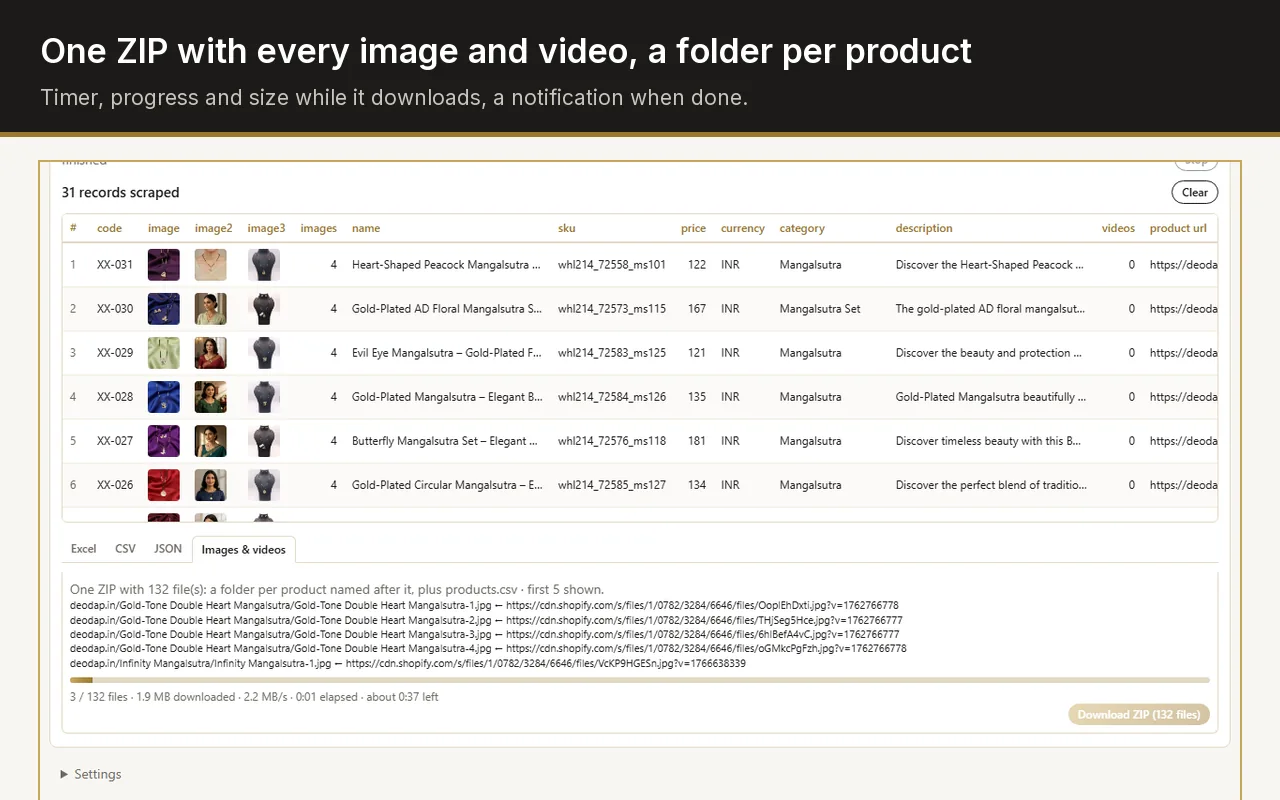
For one page, press Ctrl+S in Chrome (Cmd+S on a Mac) and save it as "Webpage, Complete": the images land in a folder beside the saved page. To choose which pictures to keep, filter them by size and download them together, use an image downloader extension. For the product photos of a whole shop, use a product scraper such as Web Product Scraper, which follows the shop's pages and saves the originals sorted by product.
| Chrome "Save as" | Image downloader extension | Web Product Scraper | |
|---|---|---|---|
| Works on | Any page | Any page | Shop category, search and product pages |
| Pages per go | The one you have open | Usually the one you have open | Up to 500 listing pages a run, plus the product pages |
| Image size | Whatever the page loaded, often a resized copy | What the page shows; some can follow links to larger files | The full-size original from each product page or the shop's feed |
| How files are organised | One folder, named by the site | One download or ZIP, named by the site | A folder per product, named after the product |
| Images that load as you scroll | Only those already loaded | Those loaded once you have scrolled | The run scrolls and opens product pages for you |
| What else you get | The page's HTML, styles and scripts | Filters by size, type or address | A spreadsheet of names, prices and SKUs in the same ZIP |
Open the page, scroll to the bottom so that every image has loaded, then press Ctrl+S (Cmd+S on a Mac). Choose "Webpage, Complete" as the format and save. Chrome writes the page as an .html file and puts everything it loaded, images included, into a folder with the same name ending in _files.
It costs nothing and needs no install, but the folder mixes photos with icons, logos, style sheets and scripts. File names are whatever the site used, and the size is the one the page displayed: sites that serve several sizes of each picture let the browser pick one to fit your screen, which is often not the largest.
Image downloader extensions, of which the Chrome Web Store has many, list every picture on the page you have open as a grid. You filter by width and height to drop icons, tick the ones you want and download them in one go, often as a ZIP. For a gallery, an article or a single page of pictures, this is the quickest way.
Their limits show on bigger jobs. They work on one page at a time, so a catalogue spread over twenty pages is twenty rounds. On a shop's listing page the pictures are small thumbnails, because the large versions live on each product page. And the files arrive in one heap, so matching each photo to its product is up to you.
Web Product Scraper is built for this case. It saves the photos and videos of each product, not every banner and icon on the page.
Open a category, collection or search page of the shop, and click the extension icon. The products on the page appear as a table.
Set the page range, for example 1 to 10. For listings that grow as you scroll or behind a Load more button, the run scrolls and presses for you.
Tick "Open every product page" so the run collects each full gallery rather than the listing thumbnails. On Shopify shops the full-size links come from the store's product feed, so no pages are opened.
Press Start scraping, open the Images & videos tab and press Download ZIP: a folder per product, named after it, with products.csv beside the folders.
Most sites load pictures only as they come into view. Anything below the part of the page you reached is not downloaded by Chrome or by an image downloader.
Open an image in a new tab and look at its size in the tab title. Product photos are usually 1000 pixels wide or more; 300 or less is a thumbnail.
Shops serve each photo in several sizes with the size written into the address. On Shopify, WooCommerce and BigCommerce shops, Web Product Scraper rewrites those addresses to the original upload.
A product page often links the same photo three or four times in different sizes. In the shop ZIP those copies count as one, so each folder holds every photo once.
Not with a browser alone: Save as and image downloaders work page by page. Website copier programs such as HTTrack crawl a whole site, with its pages. For a shop, Web Product Scraper follows the category's pages, up to 500 a run, and saves the product photos only.
The page loaded thumbnails or a size chosen for your screen. Open the product page rather than the listing, or use a tool that fetches the original file.
No. It is made for shop pages and saves the photos and videos that belong to each product. For a blog, a gallery or a page that is not a shop, Chrome's Save as or an image downloader extension fits better.
Downloading is one thing, using is another: photos are protected by copyright. Supplier photos are often meant for resellers, but check the site's terms or ask before you publish them anywhere.