
Copy the address
Open the page in your browser and copy its address from the address bar.
The right method depends on how the data sits on the page. A real HTML table goes straight into Excel with its own From Web import, and can be refreshed later. A short list is fastest with a clean paste. Products spread over several pages of a shop need a scraper that knows which number is the price. This guide covers all three, and the clean-up that every one of them needs afterwards.
Add to Chrome, it's free No account · no server · nothing leaves your browser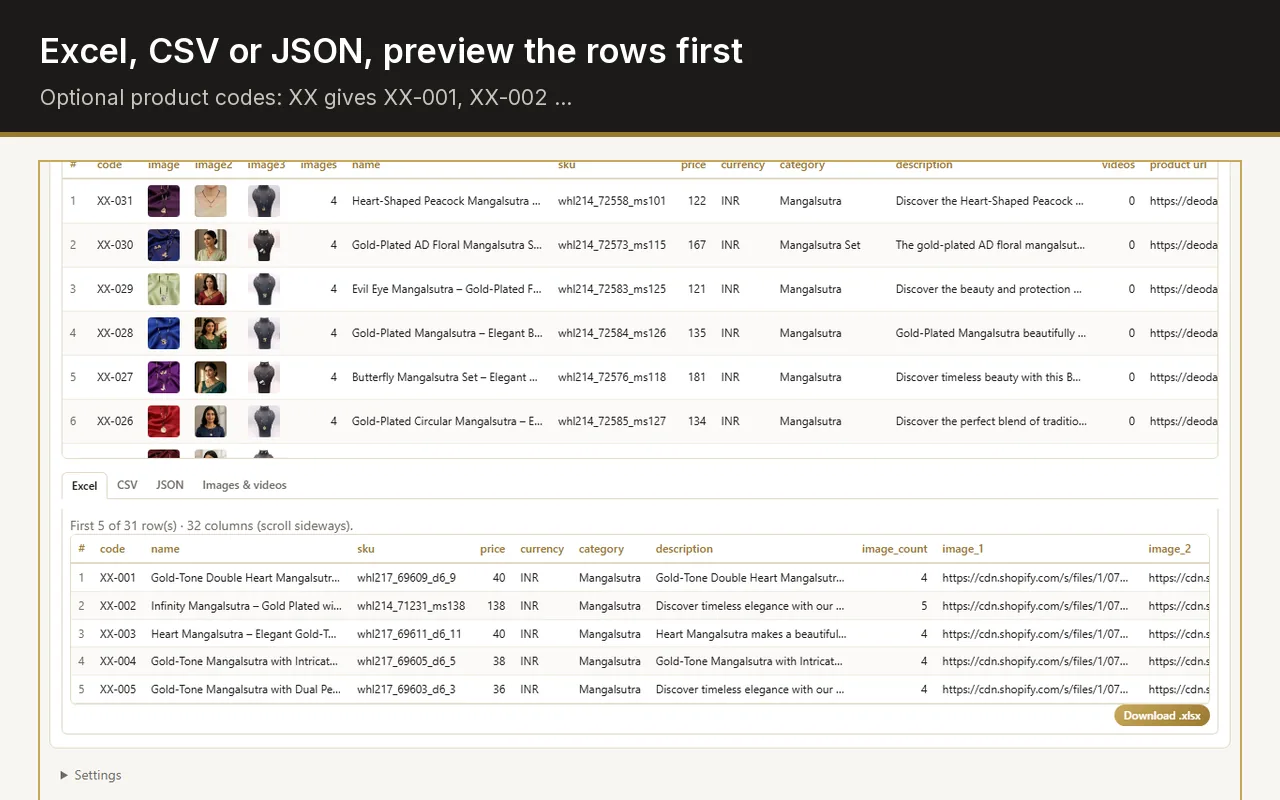
If the data is in a table on the page, use Excel's Data tab: Get Data, From Other Sources, From Web, paste the address and pick the table. If it is a handful of rows, copy them and paste as plain text. If it is a shop's products, use a scraper extension such as Web Product Scraper and download the .xlsx it makes.
Built into Excel for Windows with Microsoft 365 and Excel 2016 or later. No add-in needed.
Open the page in your browser and copy its address from the address bar.
In Excel, go to the Data tab, choose Get Data, then From Other Sources, then From Web. Paste the address and press OK.
The Navigator lists every table Excel found on the page, with a preview. Click through them until the preview shows your data.
Press Load to put it on a sheet, or Transform Data to remove columns, fix types and filter rows in Power Query first.
The import remembers the page. Data, Refresh All reads it again, and the query's properties can refresh it every few minutes or on opening the file.
From Web reads tables: pages whose data sits in rows and columns of an HTML table, such as rates, schedules, statistics or price lists. A page that lays its data out as cards, as most shops do, often shows no useful table in the Navigator, or one column of jumbled text.
The Navigator's "Add Table Using Examples" can help: you type two or three values from the page and Excel looks for the rest. It works on simple repeating layouts and needs patience on anything else. For data spread over many pages, each page is its own query unless you build a Power Query function, which is where most people stop.
Select the rows on the page, copy them, and in Excel right-click a cell and choose Paste Special, then Text, or the Keep Text Only icon. That drops the site's fonts, colours and links. A table usually keeps its columns; a list lands in one column, which Data, Text to Columns can split on a comma, a tab or another character.
In Google Sheets, a formula does the same for tables and lists: =IMPORTHTML("address", "table", 1) imports the first table of a page, and "list" instead of "table" imports a bulleted or numbered list. Change the last number to pick the second, third and so on.
Web Product Scraper reads product pages the way a person would, and writes one row per product.
Open a category, collection or search page of the shop and click the extension icon. The products appear as a table you can search, filter and sort.
Name, price, list price, SKU, brand, description, product link and image links. Remove the rest, or add a code prefix such as XX for XX-001 style codes.
Set a page range, and tick "Open every product page" when you need SKUs, descriptions and the full gallery.
Press Start scraping, then Download .xlsx. Prices arrive as numbers with the currency in its own column, so SUM and sorting work at once.
| Best for | Many pages | Images | Updating | |
|---|---|---|---|---|
| Excel From Web | HTML tables | One query per page | No | Refresh All, or on a timer |
| Copy and paste | A few rows, once | By hand | No | Paste again |
| Google Sheets IMPORTHTML | Tables and lists in Sheets | One formula per page | No | Recalculates from time to time |
| Web Product Scraper | Shop product listings | Up to 500 pages a run | Links in the sheet, files in a ZIP | Run it again |
A green corner on a cell means Excel sees text. Select the column, press the warning sign and choose Convert to Number, or use Text to Columns and Finish.
Values such as "₹1,299" or "$24.99" stay text until the symbol is gone. Find and Replace the symbol with nothing, then convert.
Web pages often carry non-breaking spaces. =TRIM(SUBSTITUTE(A2, CHAR(160), " ")) removes them.
Data, Remove Duplicates on the column that identifies a row, such as the product link.
Yes, for tables: import the page with Data, Get Data, From Web, then set the query to refresh every few minutes or when the file opens, in its properties.
The data is probably laid out as cards or built by the page's scripts rather than in an HTML table. Try Add Table Using Examples in the Navigator, or a scraper made for that kind of page.
Web Product Scraper is a free Chrome extension with no account: open the shop's category page, click the icon and download the .xlsx.
No. All three ways here work without code. Code, such as a Python script, only pays off for jobs you repeat at a large scale.