
Your own store: use the control panel
You do not need this extension. In the BigCommerce control panel, open Products, then Export, and pick an export template: you get a CSV with every product field, in the format BigCommerce imports.
Open a BigCommerce category page, click the icon, and Web Product Scraper lists its products as a table. Let it open the product pages for the SKU, brand, description and the whole gallery, then export Excel, CSV or JSON, or one ZIP with a folder per product. Free, no account, nothing leaves your browser.
Add to Chrome, it's free No account · no server · nothing leaves your browser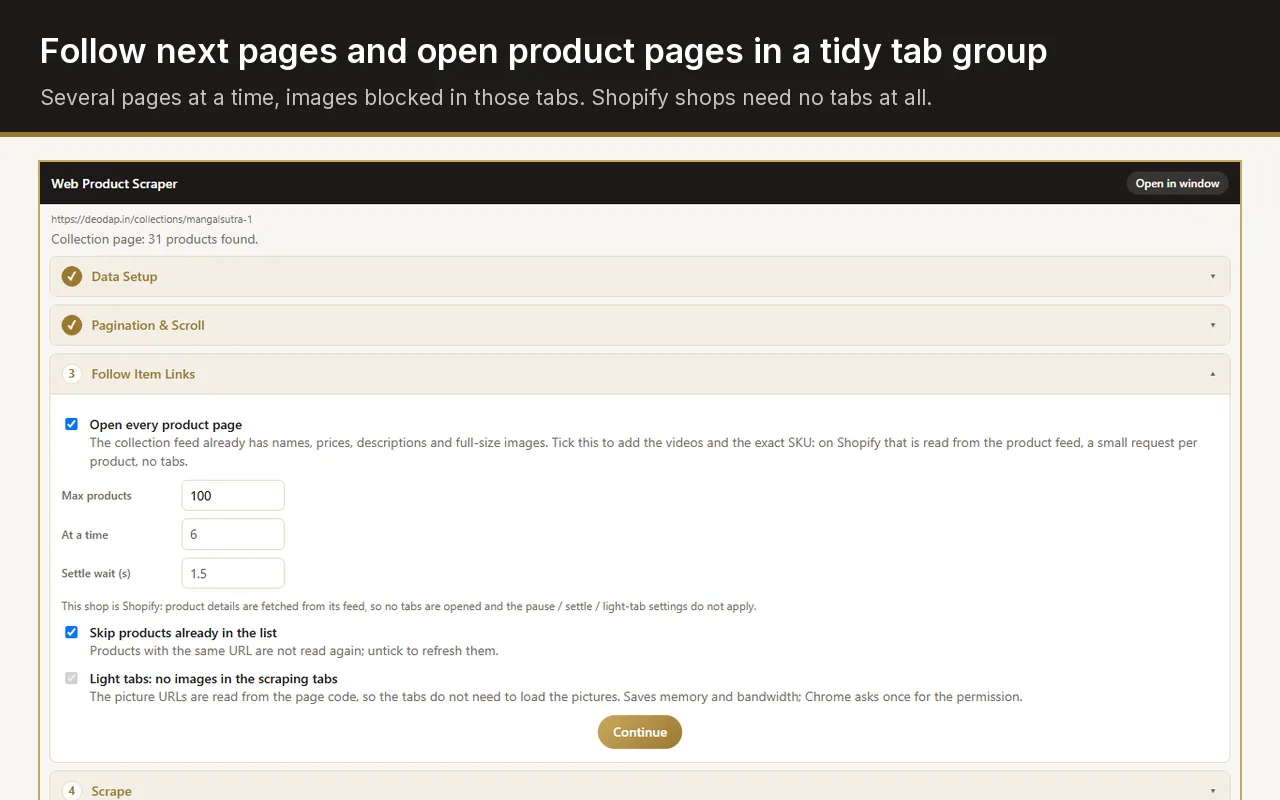
Open a category page of the BigCommerce store with Web Product Scraper installed, click the icon, and download the list as Excel or CSV. Tick "Open every product page" first when you also need SKUs, brands, descriptions and the gallery. When the store shows a retail price (RRP) above the selling price, it comes out as a separate column.
You do not need this extension. In the BigCommerce control panel, open Products, then Export, and pick an export template: you get a CSV with every product field, in the format BigCommerce imports.
A supplier, a wholesaler, or a public catalogue you are allowed to use, where you have no control-panel access. Open a category page and export it, with no account on that store.
The control-panel export lists image addresses, not the images. The ZIP here saves every photo in a folder per product, named after it.
The CSV here is a plain product table, not BigCommerce's import format. Map its columns when you import it anywhere.
The category page gives the list; the product pages give the details.
Read from the product cards of the category grid, so the list is complete before any product page is opened.
The selling price and, when the store shows a higher retail price (RRP), that price as the MRP column, with the currency. If a store shows prices with and without tax, the price without tax is used.
From the product page: the SKU the store publishes for the product and the brand shown under its title.
The description tab as plain text, and the category from the breadcrumb above the product.
Every image of the product gallery, taken from the large-image links the theme uses for its zoom and slides rather than the small thumbnails.
Type a prefix such as XX and every product gets a code: XX-001, XX-002, in page order.
Four steps in the Chrome side panel, while you look at the store.
A category, a brand page or a search result: any page that lists products in the theme's product grid. The panel shows how many products it found.
Remove the columns you do not need with one click. Add a code prefix if you want product codes.
BigCommerce categories have numbered pages with a Next link. Set "from page 1 to page N" and the run follows them, with a pause between pages.
Tick "Open every product page" for the SKU, brand, description and gallery. Pages open a few at a time in one collapsed tab group, which is closed when the run ends. Then download Excel, CSV, JSON or the ZIP.
Most BigCommerce storefronts run on Stencil themes, starting with the default Cornerstone theme. They share the same blocks: product cards in a grid, a product view with the title, brand, SKU and price box, and a gallery whose slides link to large images. Web Product Scraper has a BigCommerce reader that knows these blocks, so it takes the price, the RRP, the SKU and the gallery from the places the theme puts them.
Headless storefronts and heavily customised themes can lay their pages out differently. The general reader still uses the product data many shops publish in their pages, and when a value is read wrong, "Teach this site" fixes it: press Pick next to a field, click the right value once, and save it as a profile for that shop.
A single product page is handled as one product, with its own photos ticked, and the related and recently viewed products are never included.
Scrape a wholesaler's BigCommerce category, keep the columns you need, add your codes, and get every photo in a folder named after the product.
Export names, prices, SKUs, brands, descriptions and images from a store, and import the CSV on the platform you are moving to.
Export prices and RRPs for a category to Excel, and run it again later: products already in your list are skipped, so only new ones are added.
Export apps for BigCommerce are installed on the store itself, so they need the owner's control-panel access. Web Product Scraper works from the outside, on the public pages you open in Chrome, and sends nothing anywhere. The same four steps and exports work when the next supplier runs Shopify, WooCommerce, Magento or a custom shop.
It is free without a paid tier: no watermark, no sign-up, nothing locked behind payment. Each run reads up to 500 pages and collects as many products as you set. Site access is requested per shop, only when you start a run there.
The table holds one row per product, with the price and SKU the product page shows. Rows for each size or colour are not exported at the moment.
When a BigCommerce store shows prices both with and without tax, the price without tax goes into the price column. The price with tax is not exported as a separate column at the moment.
You choose, between 1 and 10, with a pause between page loads. Three is a safe choice; some stores behind a firewall start refusing at five or more.
You are responsible for how you use the data. Read the store's terms, take only what you need, and keep the default pauses; the extension reads only pages you open yourself and stops if a site starts refusing.