
Prices as numbers
The price and the list price arrive as plain numbers, with the currency in a column of its own, so SUM, sorting and filters work at once.
Google Sheets can pull a table from a web page with a formula, but a shop's products rarely sit in a table, and the photos and the next pages never come along. This guide shows the quickest way to get a shop's products into a sheet, what lands in each column, the formulas Sheets offers, and where they stop.
Add to Chrome, it's free No account · private by default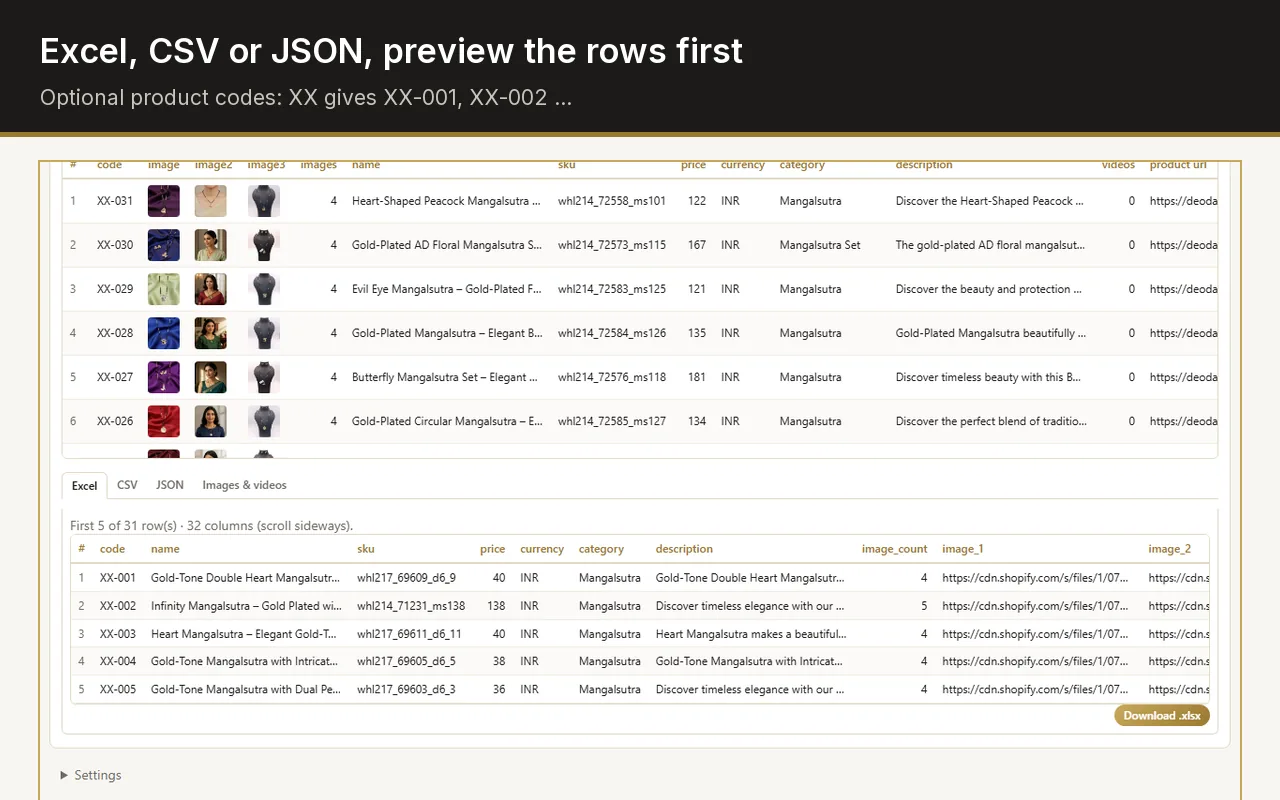
Open the shop page with Web Product Scraper and press Open in Google Sheets. It copies every row and opens a new sheet; click cell A1 and paste.
The same columns as the Excel download, one row per product.
The price and the list price arrive as plain numbers, with the currency in a column of its own, so SUM, sorting and filters work at once.
Name, SKU, brand, category, description and the product's link, as far as the shop shows them.
One column per photo, each holding the address of the full-size image.
Product codes such as XX-001 and a your-price column, when you set a code prefix or a markup.
Rows you filtered or ticked in the side panel are the rows that go in, nothing else.
=IMPORTHTML("address", "table", 1) imports the first table on a page; "list" instead of "table" imports a list. Good for rates, schedules and price lists laid out as tables.
=IMPORTXML("address", "//meta[@property='og:price:amount']/@content") picks one value with an XPath, here the price many shops put in the page for link previews.
=IMPORTDATA("address") reads a CSV or tab-separated file published at an address.
They read the page as the server sends it, not what its scripts add later. Each formula covers one page, brings no photos, and breaks when the shop changes its layout.
Add a column with =IMAGE(F2), pointing at an image link, and the photo shows inside the cell. Fill it down for every row.
Insert, Image, Image in cell places a single picture, for a few products.
For the photo files, a folder per product, download the Photos ZIP in step 4 next to the sheet.
Pasted rows are values: they do not change when the shop does. Set Repeat to every day or every week in step 2 and your list marks every price that moved; paste the new run into a new tab of the same sheet to compare.
Formulas such as IMPORTHTML refresh by themselves from time to time, but only for pages that keep their data in a plain table.
No. It is a Chrome extension and it never gets access to your Google account: it copies the rows and opens a blank sheet for you to paste them into.
Because it has no access to your Google account, your data stays in your browser until you paste it yourself.
Yes. Open a collection or category page of the store, click the extension icon and press Open in Google Sheets, the same way as on any other shop.
No. IMPORTXML reads HTML and XML, and products.json is JSON. Web Product Scraper reads that feed for you on any Shopify collection page.
Yes. Upload the .xlsx to Google Drive and open it with Google Sheets; the columns are the same.